At Mathema, teachers regularly send parents short reports on their student's progress. All reports are created with the help of an AI assistant, which analyses the data you provide and generates a text tailored to each student's individual progress.
These reports help parents see results, better understand their child's needs, and stay involved in the learning process.
📅 When to create reports
There are three types of reports:
- After the introductory lesson — right after the lesson ends.
- After every 8th lesson — a detailed report on the student's progress.
- After every lesson — a short rating in the lesson details.
Parents receive these reports automatically by email and can also view them in the student's Journal.
📝 How to prepare a report
The process is the same for the introductory lesson report and the regular report after the 8th lesson.
To start filling in a report:
1. Open the Student's Journal for the student you're creating a report for.
2. Select the relevant lesson and click Create report.
A report form will open with four sections to fill in:
-
General information
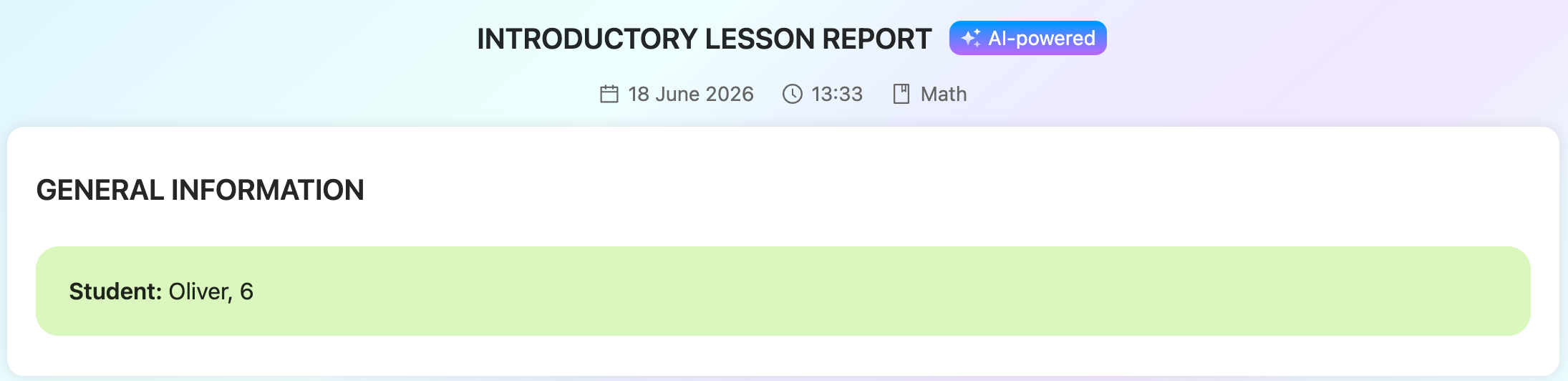
Here you will see the lesson type, subject, lesson time, student’s first and last name, and grade.
-
Knowledge assessment from the diagnostic test
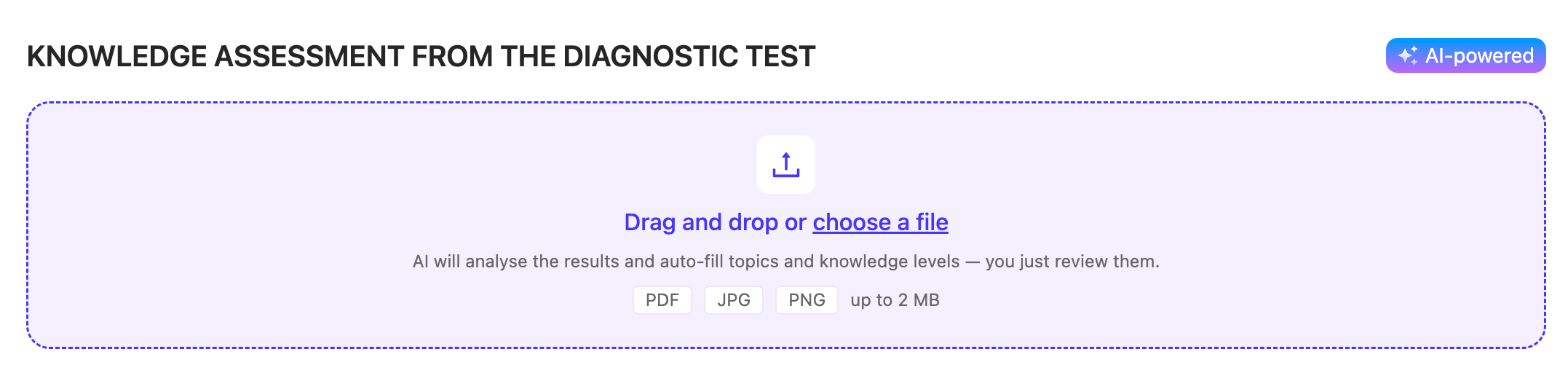
Upload a screenshot of the test results. The AI assistant will recognise the topics and fill in the knowledge level automatically. You can then adjust the rating, add a comment, or add your own topic.
-
Mark the level of topic understanding
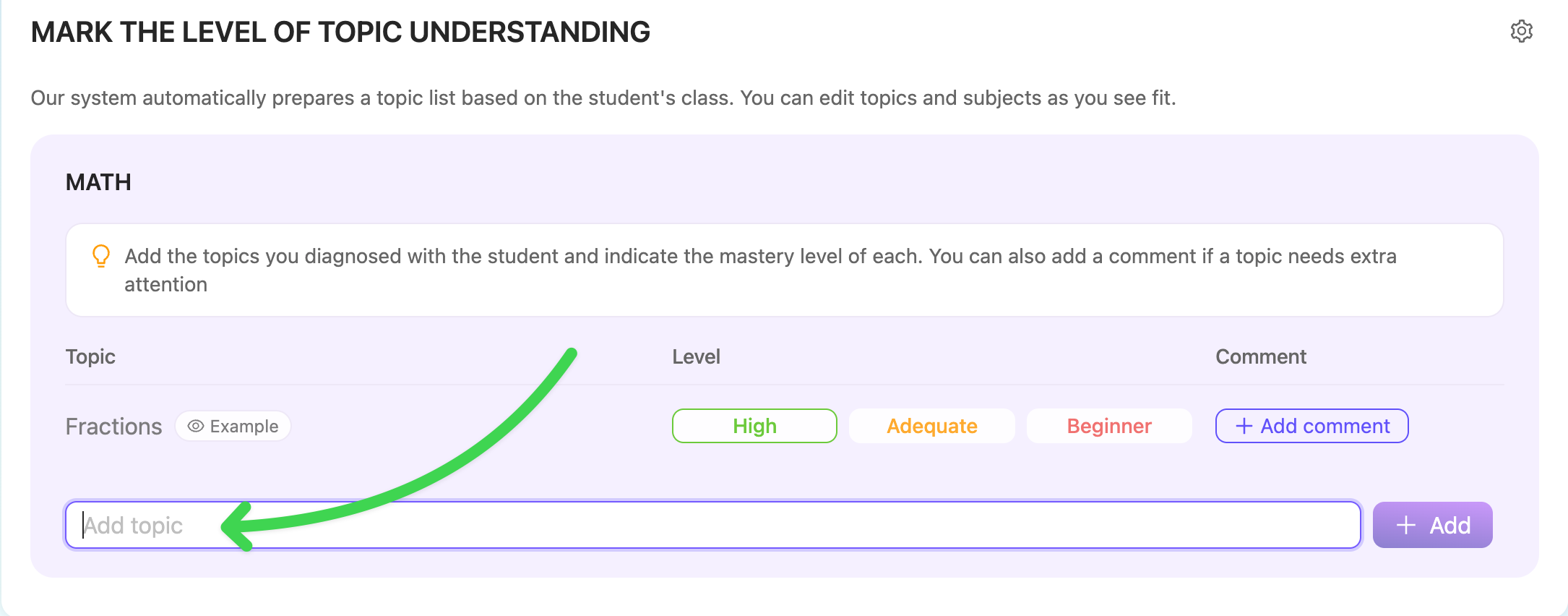
The system prepares a list of topics based on the student's grade. Choose topics from the list or add your own. For each topic, select a level: High, Adequate, or Beginner. Add a comment or remove a topic if needed.
💡 To generate the text correctly, make sure to specify the topics covered during the lesson.
⚠️ For the introductory lesson report, be sure to add at least three topics assessed during the diagnostic session.
-
Engagement and confidence
Pick the characteristics that best describe the student during the lesson. They're grouped into three categories: Positive, In progress, and Growth zone.
3. Click Generate report.
The AI assistant will prepare a text for parents. Review it carefully and edit if needed, or click Regenerate.
4. Click Send report.
✅ The report is saved and sent to the parents.
You can view or edit a sent report in the Student's Journal, under the Reports tab.
⭐️ Rating after every lesson
After every regular lesson, the system will prompt you to rate it briefly.
How to rate a lesson:
- Open Calendar and select the relevant lesson.
- Click Mark lesson as completed.
- Fill in the short Lesson confirmation form and click Save.
All ratings appear automatically in the Student's Journal.
