If your child’s routine has changed, for example there are new after-school clubs or the school timetable has been updated, you can change the regular lesson schedule. There are two ways. Pick a new time on your own in your account, or agree on it with the teacher and confirm the changes.
When you change the schedule on your own, the system only shows the hours when your teacher is free.
⚙️ How to change the lesson schedule on your own
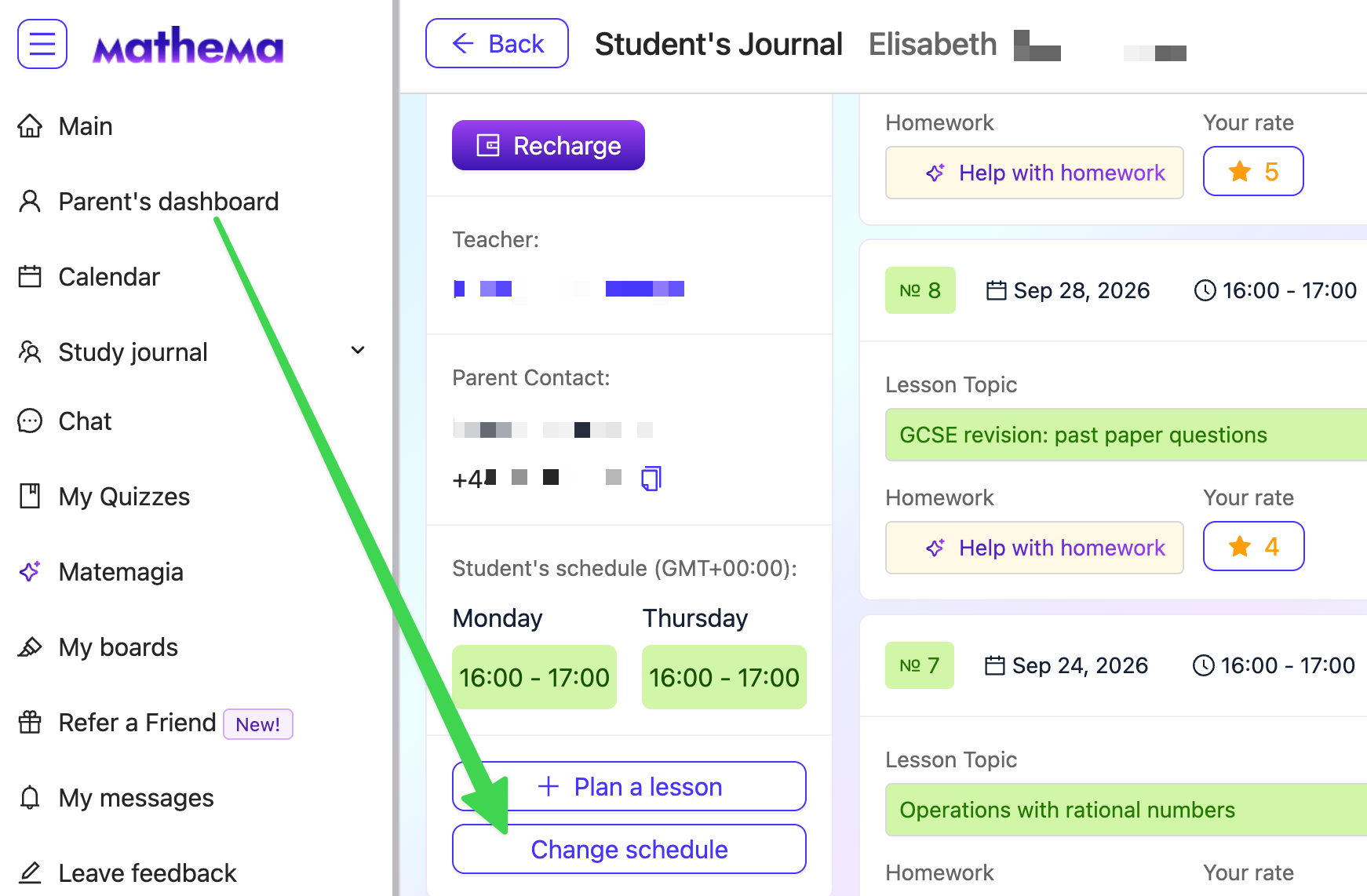
- Log in to your account and open Parent’s dashboard in the menu on the left.
- Click View successes next to your child’s name.
- Under the current schedule, choose Change schedule.
- Choose how many lessons a week work for you.
- Pick the days and times that suit your child.
- Click Continue to confirm the new schedule.
⚡️ The lesson schedule has been changed successfully.
After changing the schedule, take a look at your child’s calendar to make sure all the changes show up correctly.
🔔 How to confirm a schedule change from the teacher
The teacher can change the schedule on their side, and all that’s left for you is to confirm the changes.
To do this, please:
- Agree with the teacher on the number of lessons a week, the lesson days and times, and the date the new schedule will start.
- Wait for the teacher to send you a request to change the lesson schedule.
- Open the 🔔 notification in your account or the direct link from the teacher. Compare the current and new schedules, then confirm or decline the changes.
If you confirm the changes, the new schedule will start from the date you agreed with the teacher. If you decline them, the schedule will stay the same.
⏱️ You have 2 days to confirm. If you don’t respond, the request will be cancelled and the schedule will stay the same. Until you confirm the changes, lessons continue on the current schedule.
